Common Issues in WhatsApp Coexistence: Causes, Fixes, and a Complete Setup Guide
WhatsApp Coexistence not working? Learn the causes and fixes for phone-number eligibility, QR code, chat synchronization, Meta permissions, previous API integrations, companion devices, and business-name issues.
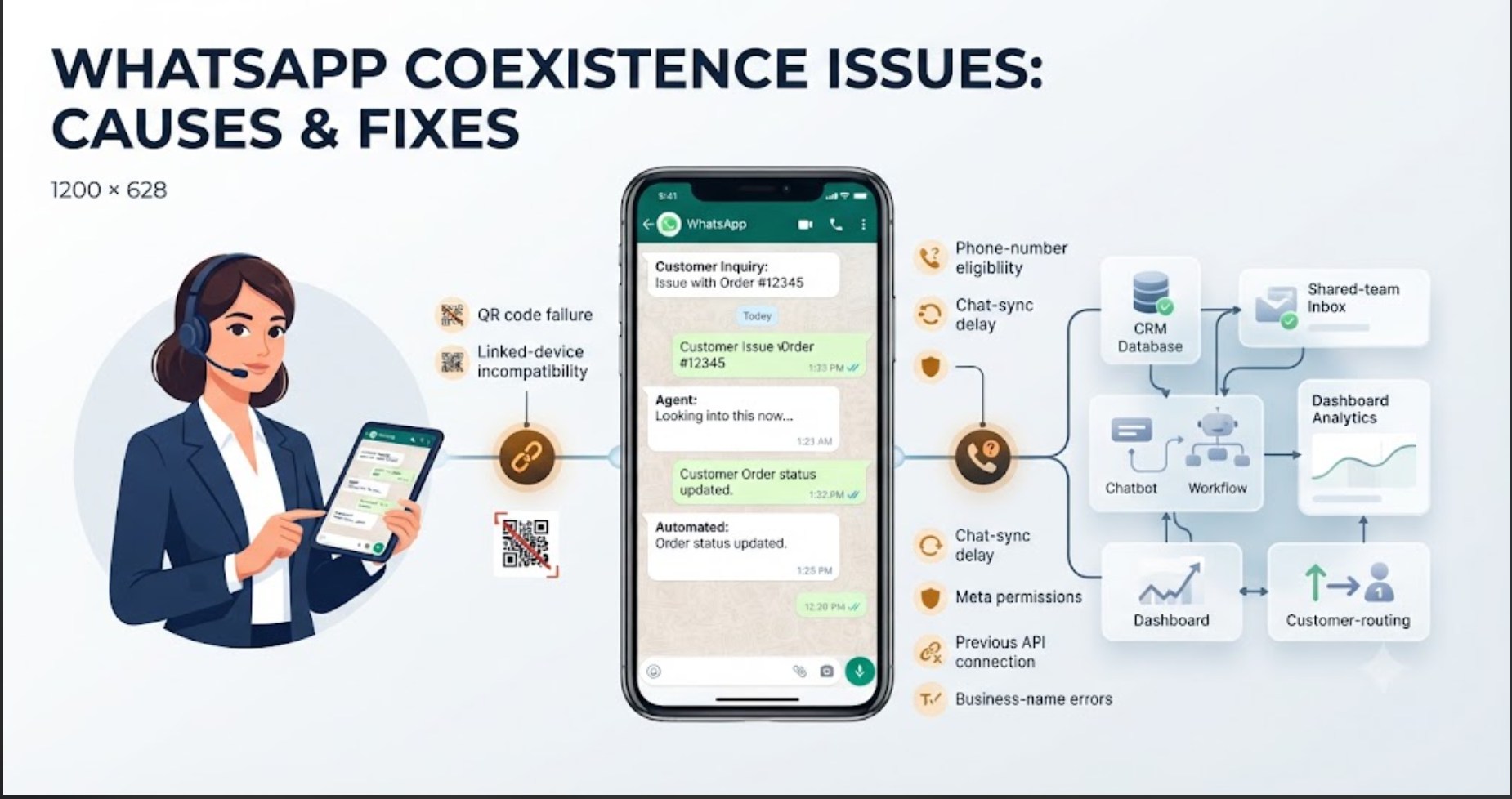
A Complete Guide to WhatsApp Coexistence Setup Errors and Solutions
WhatsApp Coexistence gives businesses a practical way to use the WhatsApp Business App and the WhatsApp Business Platform with the same phone number.
For growing teams, this can be extremely useful.
Staff can continue handling conversations through the familiar mobile app while the business adds automation, CRM integration, shared-team access, chatbots, reporting, and structured customer workflows through the API.
However, the onboarding process does not always go smoothly.
A phone number may appear ineligible. The QR code may fail. Historical chats may not synchronize. A previous WhatsApp API connection may block the new setup. In other cases, the problem is caused by Meta Business permissions, an unsupported device, or incorrect account information.
Most of these failures are not random.
They are usually caused by a small number of eligibility, configuration, or synchronization issues.
Here are nine common WhatsApp Coexistence problems, their likely causes, and the practical steps businesses can take to resolve them.
1. Issue: The phone number is not eligible
During onboarding, you may receive a message saying that your phone number is not eligible to connect to the WhatsApp Business Platform.
Cause
This usually happens when the phone number is newly registered, has very little messaging activity, or was recently moved between WhatsApp products.
Meta may not have enough account history to assess whether the number is eligible for WhatsApp Coexistence.
The issue can also occur when the number was previously connected to another WhatsApp API provider or WhatsApp Business Account.
Solution for phone-number eligibility issues
Use the phone number actively in the WhatsApp Business App before trying the onboarding process again.
Build a genuine history of customer conversations and avoid repeatedly deleting and registering the number.
Also check whether the number is still connected to a previous WhatsApp Business Platform provider. Ask the previous provider to completely disconnect or deregister the number before restarting the Coexistence setup.
2. Issue: The number was previously connected to the WhatsApp API
The onboarding process may fail because the phone number is already associated with another WhatsApp Business Account, Cloud API setup, or solution provider.
Cause
The previous WhatsApp API provider may not have fully disconnected the number.
In some cases, the number may still be registered with an old WhatsApp Business Account even though the previous integration is no longer being used.
Meta may also show a message saying that the business is already sharing the account with another partner.
Solution for previous WhatsApp API connection issues
Contact the previous provider and confirm that the phone number has been completely deregistered.
Check your Meta Business settings to determine whether the number is still connected to an existing WhatsApp Business Account or partner.
After the previous connection is removed, register the number in the WhatsApp Business App and use it normally before attempting another Coexistence connection.
Avoid moving the same number between multiple providers within a short period.
3. Issue: WhatsApp Coexistence appears unavailable in your country or region
The Coexistence option may not appear during onboarding, or the platform may indicate that the service is unavailable.
Cause
WhatsApp Coexistence was introduced gradually, so availability previously differed between countries, businesses, and providers.
Access may also depend on the business account, phone-number eligibility, Meta policies, local regulations, or the capabilities of the selected solution provider.
Solution for country or regional availability issues
Check Meta’s latest WhatsApp Business Platform documentation and confirm availability with your official solution provider.
Ask the provider to verify whether your business account, phone number, and region are currently eligible.
Do not use a foreign phone number simply to bypass regional restrictions. This could create problems related to business verification, telecommunications requirements, privacy rules, or customer trust.
4. Issue: Chat history or contacts are not synchronizing
Recent conversations may not appear in the connected API platform, CRM, shared inbox, or automation system.
In some cases, the synchronization process may remain incomplete for a long time.
Cause
Synchronization may be affected by:
- A large volume of existing conversations
- An unstable internet connection
- The WhatsApp Business App being closed during onboarding
- A device change during synchronization
- Reinstalling or re-registering the WhatsApp Business App
- An interruption in the onboarding process
Changing the primary device or registering the number again may also disconnect the Cloud API connection.
Solution for chat-history or contact-sync issues
Keep the primary phone connected to a stable internet connection during onboarding.
Leave the WhatsApp Business App active while the synchronization is running. Avoid changing phones, reinstalling the app, or registering the number again.
Give the platform enough time to process the conversation history, especially when the account contains many chats.
Back up important customer conversations and business information before beginning the onboarding process.
After setup, send test messages from both the WhatsApp Business App and the connected platform to confirm that messages are being synchronized correctly.
5. Issue: The QR code does not appear or cannot be scanned
The QR code may fail to load, expire before it is scanned, or remain unreadable when using the primary phone.
Cause
Common causes include:
- An outdated WhatsApp Business App
- An expired QR-code session
- Using the wrong onboarding process
- Poor lighting or camera focus
- Low screen brightness
- Browser pop-up restrictions
- Incorrect Meta login details
- Missing administrator permissions
- A temporary connection or server problem
Solution for QR-code issues
Update the WhatsApp Business App through the official app store.
Restart the embedded signup process and generate a new QR code. Do not continue trying to scan an old or expired code.
Use the primary phone linked to the WhatsApp Business number. Clean the camera lens, increase the computer screen’s brightness, and ensure the entire code is visible.
Check whether your browser is blocking pop-ups or third-party login windows.
Also confirm that you are signed in to the correct Meta account and have administrator access to the relevant business assets.
6. Issue: The Facebook Page or Meta Business Account cannot be linked
The onboarding process may prevent you from selecting or connecting the correct Facebook Page, Meta Business Account, or business portfolio.
Cause
This can happen when:
- You do not have administrator access
- You are signed in to the wrong Facebook profile
- The Page belongs to another business account
- The WhatsApp Business Account is owned by another organization
- The business information is incomplete or incorrect
- An employee, agency, or freelancer controls the required assets
- Duplicate Meta Business Accounts have been created
Solution for Meta Business Account linking issues
Confirm that you have full administrative control over the Meta Business Account, Facebook Page, and WhatsApp Business Account.
Check that the Page and other required assets belong to the correct business portfolio.
Review the company name, address, website, phone number, Page ownership, and user permissions before restarting onboarding.
Where possible, complete the process using a Meta account that is permanently controlled by the business.
Avoid relying on an employee, freelancer, or agency account that could later lose access.
7. Issue: WhatsApp Coexistence cannot be disabled from the API dashboard
You may not find an option to disconnect or disable Coexistence inside the API provider’s dashboard.
Cause
The Coexistence connection is not always controlled entirely through the API provider.
Some connection settings are managed from inside the WhatsApp Business App. As a result, the API dashboard may not display a direct disconnect option.
Solution for disabling WhatsApp Coexistence
Open the WhatsApp Business App on the primary phone.
Review the Business Platform or connected-platform settings and use the available disconnect option.
Do not uninstall the WhatsApp Business App as your first troubleshooting step. Uninstalling the app, registering the number again, or changing devices may create additional connection problems.
Before disconnecting, record your message templates, automations, integrations, webhooks, routing rules, and customer-support workflows.
This will make it easier to rebuild the setup if you connect the number again later.
8. Issue: Messages from companion devices are not synchronizing
Messages sent from certain linked devices may appear in the WhatsApp Business App but not in the API platform, CRM, shared inbox, or automation system.
Cause
Not every companion device or WhatsApp application may be fully supported by the Coexistence setup.
A device may be able to send messages while failing to mirror those messages through the Cloud API.
Previously linked devices may also need to be reconnected after Coexistence onboarding.
Solution for companion-device synchronization issues
Review all devices linked to the WhatsApp Business account.
Remove unsupported or inactive devices and reconnect the devices your team needs after onboarding.
Test incoming and outgoing messages from every phone, browser, desktop application, or companion device used by the team.
Confirm that each test message appears in both the WhatsApp Business App and the connected API platform.
Do not assume a device is fully supported simply because it can send a WhatsApp message.
9. Issue: The business display name is incorrect after onboarding
The wrong company name, an outdated trading name, or a spelling mistake may appear after the phone number is connected.
Cause
The display name may have been entered incorrectly during onboarding.
The name may also be inconsistent across the WhatsApp Business profile, Facebook Page, company website, and Meta Business Account.
In some cases, the business may begin onboarding before all stakeholders approve the final display name.
Solution for business display-name issues
Review the display name carefully before beginning the onboarding process.
Check the spelling, capitalization, brand name, legal ownership, and consistency across all business assets.
Make sure the name follows Meta’s current display-name requirements.
Obtain internal approval before submitting the name. Do not assume it will be easy to change after onboarding.
When a correction is required, update the relevant business information and follow the display-name review process provided by Meta or your solution provider.
WhatsApp Coexistence Pre-Onboarding Checklist
Before starting the setup, confirm that:
- The phone number is active in the WhatsApp Business App.
- The WhatsApp Business App is updated.
- The number is not connected to a previous API provider.
- You control the required Meta Business Account and Facebook Page.
- Your business and display-name information is correct.
- The primary phone has a stable internet connection.
- Important conversations and customer information are backed up.
- Your team knows which linked devices are supported.
- Your solution provider offers a clear support and escalation process.
Most WhatsApp Coexistence problems can be prevented by checking account ownership, number history, permissions, devices, and previous integrations before onboarding begins.
Facing issues or wants expert help for WhatsApp Coexistence? Connect with SyncWABA Expert for free or Call/WhatsApp on support +91 8459418970.
Ready to Get Started with WhatsApp Business API?
Join 1,000+ businesses using SyncWABA to grow with WhatsApp. Start free today!